
What is a Docking Station?A docking station is like a bridge that connects your laptop, tablet, or other devices to extra ports and features. It’s a handy gadget that expands your connectivity, letting you plug in multiple accessories like monitors, keyboards, or external drives—all at once.Whether you’re working from home, in an office, or even gaming, a docking station helps you get more done with less hassle.
Table of Contents
What exactly is a docking station?
A docking station is a device that turns your laptop, tablet, or even phone into a full workstation. Think of it as an all-in-one hub for extra connections.
Its main job? Extend connections. You can plug in monitors, keyboards, a mouse, or external drives—all at the same time. It’s great when your device doesn’t have enough ports.
Another key function? Power your devices. Many docking stations can charge your laptop or gadgets while you use them, so you’re never left with a low battery.
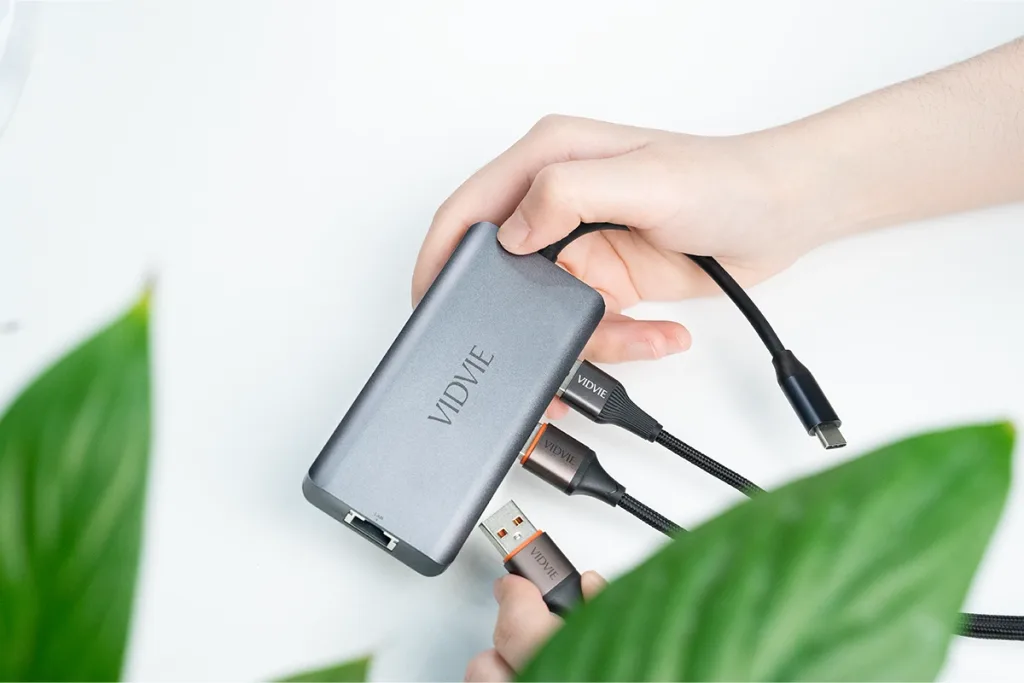
How to Choose the Right Docking Station
Compatibility
First off, make sure the docking station works with your devices. Some docking stations only work with certain brands or operating systems, like Windows or macOS. Always check the specifications to avoid any surprises.
Connection Requirements
Think about how you’ll connect your devices. Do you need HDMI, USB-C, or DisplayPort? Some docking stations have multiple ports, while others are more specialized. If you’re connecting a lot of devices (like a second monitor, external drives, or a keyboard), make sure the docking station has enough ports to meet your needs.
Budget
Your budget will definitely influence your choice. Docking stations can range from budget-friendly options to premium models with extra features. Keep in mind that cheaper options might lack certain features, like fast data transfer or the ability to support 4K monitors. If you’re on a budget, look for a station that provides the basics without compromising too much on performance.
Data Transmission Speed
If you plan to transfer large files, speed is crucial. For fast data transfer, look for docking stations with USB 3.0 or Thunderbolt 3/4 support. These technologies offer faster speeds than older versions, which can save you time when transferring files or using external devices.
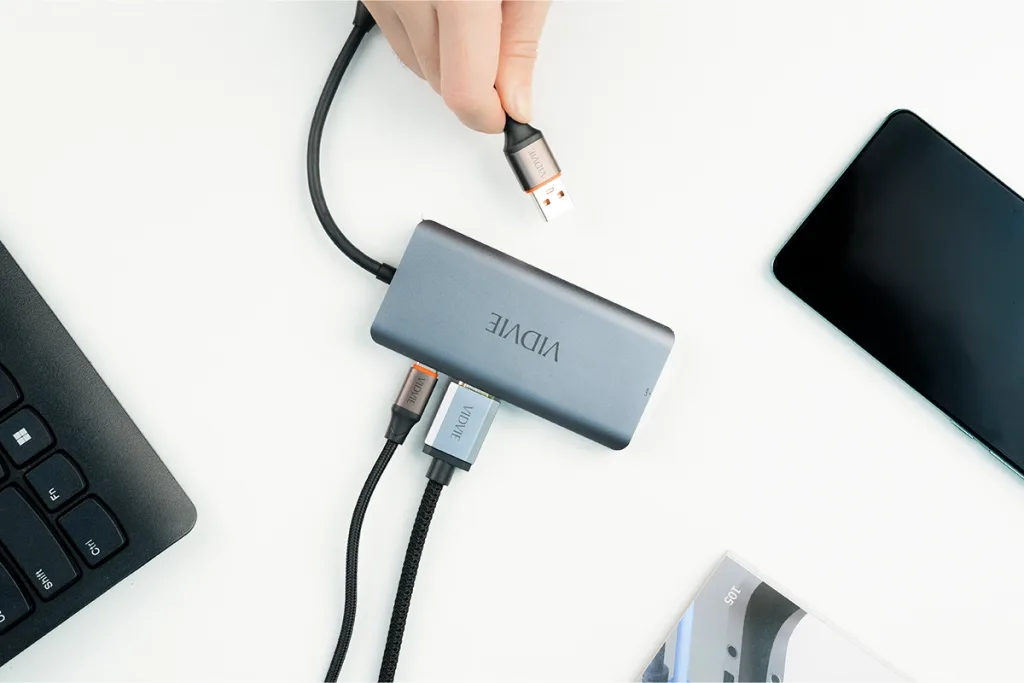
Port Type and Data Volume
Port type matters depending on your setup. For instance, USB-C is common in newer laptops and devices, offering both power and data transfer in a single connection. If you have high data volume needs, such as for gaming or video editing, you’ll need a docking station with high-speed ports (USB 3.0, Thunderbolt, or DisplayPort).
Use Case: Office, Home, or Gaming
Office Use: If you’re working from home or in an office, go for a docking station with a couple of USB ports, HDMI for external monitors, and maybe Ethernet for a stable internet connection.
Home Use: At home, you might want a docking station with plenty of USB ports for various devices, plus support for 4K resolution if you’re connecting to a TV or external monitor.
Commercial/Gaming Use: For gaming or high-performance work, look for a docking station with robust data transmission, support for multiple monitors, and even enhanced cooling options if you’re pushing your devices hard.
As a trusted supplier of high-speed transportation docking stations, we provide top-quality solutions to wholesalers across various industries. If you’re looking for reliable, high-performance docking stations, feel free to reach out to us. Click the link to contact us for more information or to place an order today!
Everything You Need To Know About Dock Maintenance
Keep It Clean
Dust and dirt can build up over time, especially around ports and vents. Use a soft cloth or microfiber towel to wipe down your dock regularly. For harder-to-reach areas, you can use a can of compressed air to blow out dust, which helps prevent overheating and keeps the connections clean.
Update Your Drivers and Firmware
Just like any other tech, docking stations need updates. Check for driver or firmware updates from the manufacturer’s website regularly. These updates can improve performance, fix bugs, and add new features. It’s an easy step that can save you from potential problems down the road.
Conclusion
By now, you should have a clear idea of how a docking station works and what to look for when choosing one. From compatibility to connection options and speed, picking the right dock is all about meeting your needs. With the right investment, you can create a more efficient, clutter-free workspace, enjoy faster data transfers, and never worry about running out of ports again.
So, take a moment to think about how you use your devices and what features matter most to you. Investing in a quality docking station that fits your needs is definitely worth it. It’ll not only improve your tech setup but also help you get more done—whether at work, home, or while gaming.

FAQ about Docking Station
What devices can I connect to a docking station?
Most docking stations are designed to work with laptops, desktops, and even some tablets or smartphones. You can connect monitors, keyboards, mice, printers, external hard drives, and more. Just make sure your docking station supports the right ports for your devices, like HDMI, USB-C, or DisplayPort.
Do I need special software to use a docking station?
Usually, no. Most docking stations work right out of the box with plug-and-play functionality. However, some advanced features might require you to install drivers or software updates from the manufacturer. Always check the instructions to make sure you’re up to date.
Can a docking station improve my computer’s performance?
A docking station won’t speed up your computer’s processing power, but it can definitely enhance your workflow. By giving you more ports, faster data transfers, and multiple monitor support, it can help you multitask better and get more done efficiently. It’s a great way to organize your tech setup and improve productivity.