
Table of Contents
Why Your Mouse Is Not Working?
When using the mouse, if the mouse does not work properly, it is probably due to the following reasons (see if you have any of the following situations)
Battery exhaustion: Insufficient power in a wireless mouse may cause the mouse to not work properly;
Connection problem: A wired mouse may not work because the cable is loose or damaged, while a wireless mouse may have unstable connection due to signal interference or receiver problems;
Driver problem: A damaged or outdated mouse driver may cause the mouse to not work properly;
Fault in the mouse itself: Damaged or aged parts inside the mouse may also cause the mouse to not move;
System problem: Certain settings or conflicts in the operating system may cause the mouse to not respond.
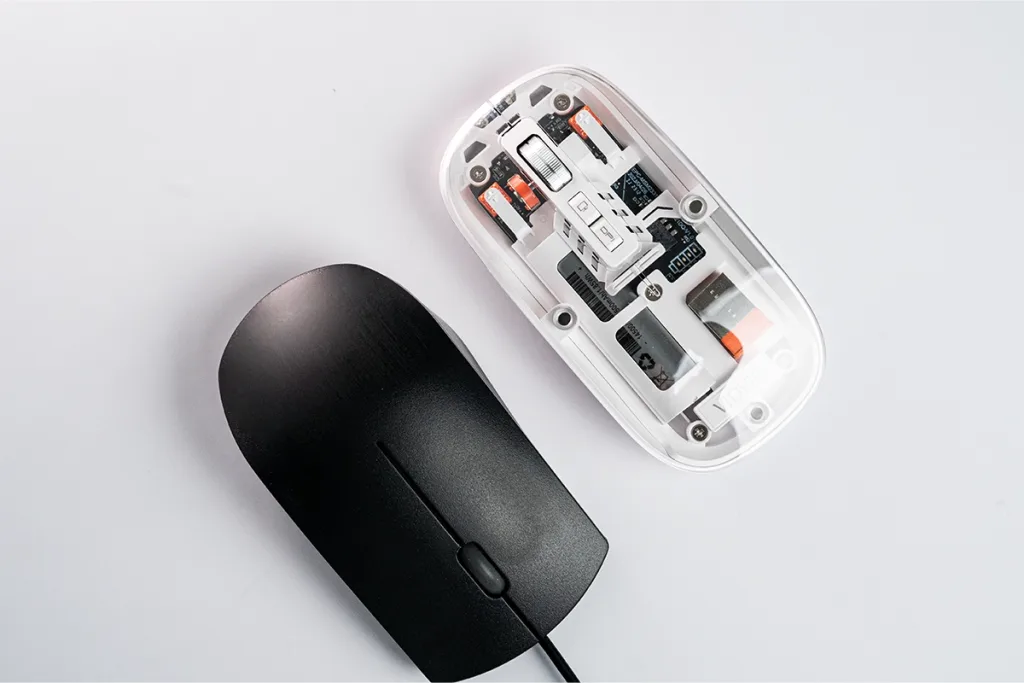
How to Fix the Issues?
Replacement battery
It is very likely that the battery is dead. In this case, just replace the battery. Different mice may require different battery sizes.
Step 1: Open the battery compartment cover at the bottom of the mouse, take out the old battery, and pay attention to the direction of the positive and negative poles;
Step 2: Put in the new battery, making sure the positive and negative poles correspond;
Step 3: Close the battery compartment cover and test whether the mouse returns to normal.
Check and Repair the Connection
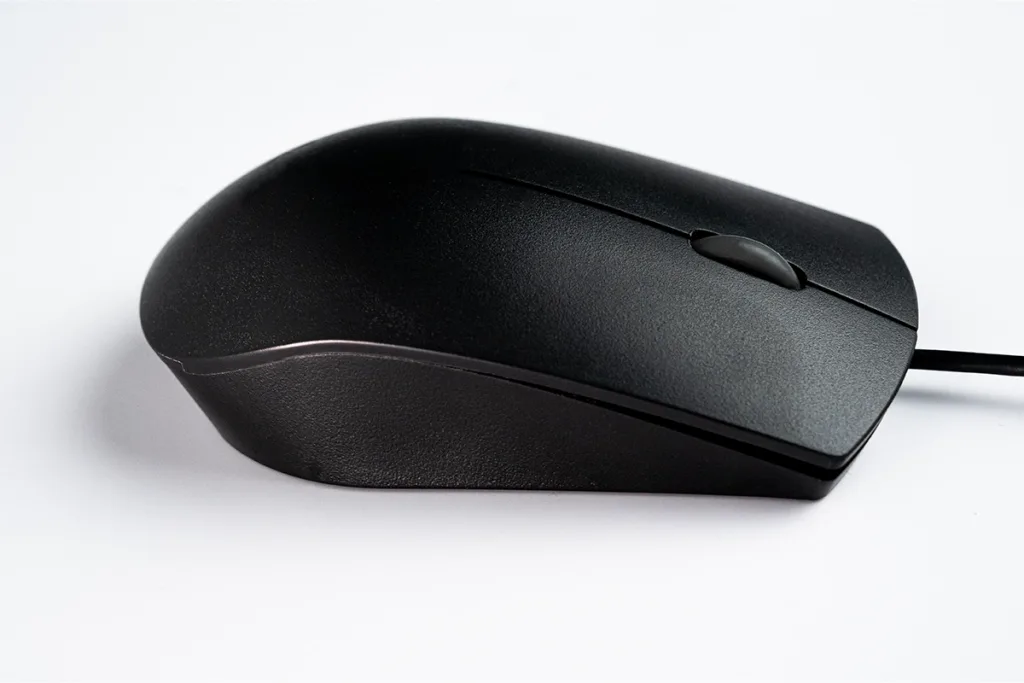
Wired Mouse
Step 1: Check if the cable between the mouse and the computer is plugged in tightly;
Step 2: Try to change a USB port to see if the problem can be solved;
Step 3: Check if the cable is damaged or broken, and replace it with a new one if necessary.
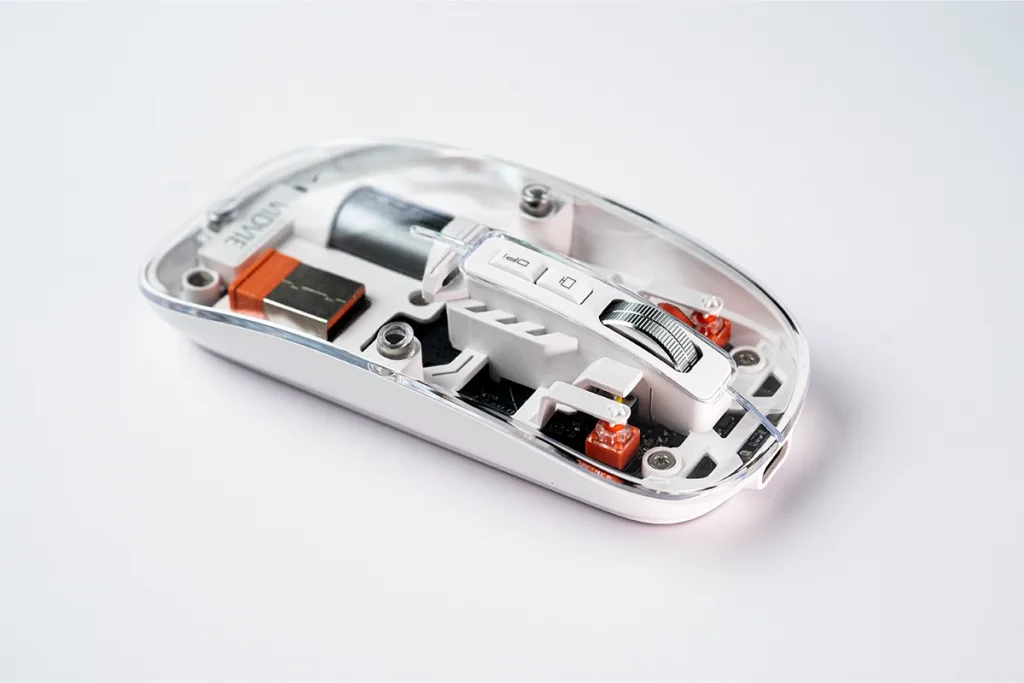
Wireless Mouse
Step 1: Make sure the wireless mouse receiver is correctly plugged into the computer’s USB port;
Step 2: Check whether the signal connection between the mouse and the receiver is stable to avoid signal interference;
Step 3: Try plugging the receiver into another USB port on the computer to see if the problem can be solved.
Check and Adjust System settings
Step 1: Open the [Control Panel] and find [Mouse];
Step 2: Check the mouse settings, such as whether the movement speed, double-click speed, etc. are appropriate;
Step 3: Try to close some programs or functions that may interfere with the mouse function, such as the touch screen function;
Step 4: Check whether the operating system has been updated, and if necessary, update to the latest version.
Summarize
In short, it is not necessarily difficult to deal with a mouse that no longer works. First check the power supply, connection, or test it on another computer. This article will help you save time and experience and get your mouse back to normal. If you want to know more, please stay tuned, we will continue to provide you with more solutions.