
HDMI and DisplayPort cables are staples in modern tech setups. HDMI is often the go-to for TVs, gaming consoles, and projectors, while DisplayPort is the favorite for high-performance monitors and advanced PC setups. Both are essential, but what happens when you try to connect them and things don’t work?This article is here to help. We’ll dive into the reasons behind these connection hiccups, offer clear troubleshooting tips, and explain the technical stuff in a way that’s easy to understand. By the end, you’ll know exactly how to tackle HDMI to DisplayPort cable issues like a pro.
Table of Contents
Common Causes of HDMI to DisplayPort Issues
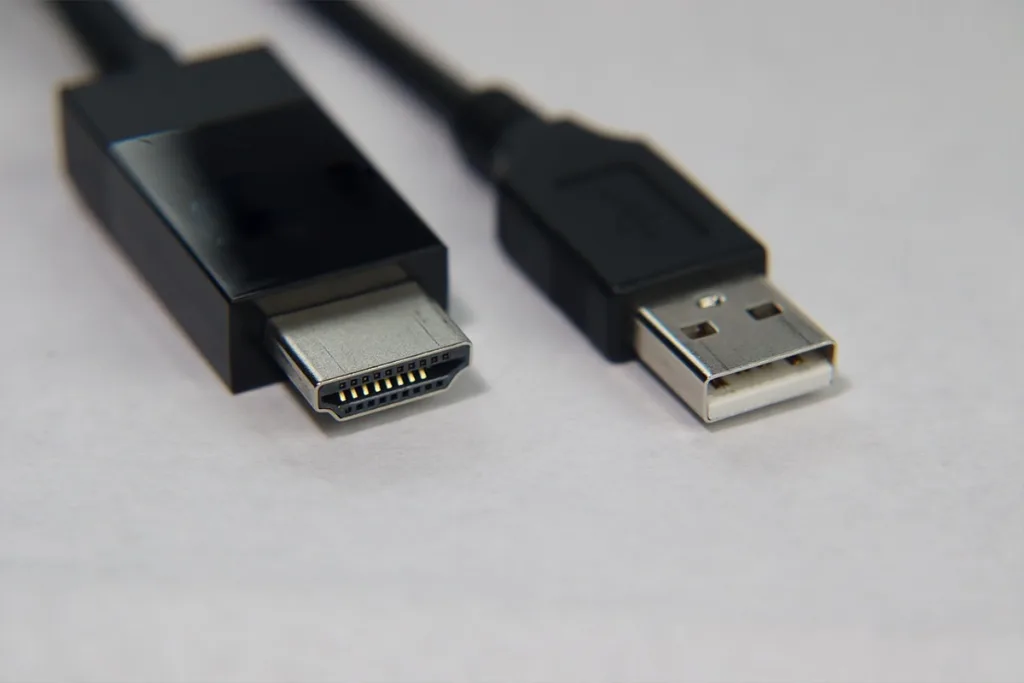
Lack of Compatibility
Not all devices work with HDMI to DisplayPort connections. Unlike regular cables, these setups often need specific hardware support. For example, many HDMI outputs don’t naturally send the right signal for a DisplayPort input without an adapter. It’s a compatibility issue, and it’s more common than you think.
Adapter Types
There are two kinds of adapters: active and passive. Passive ones are simple but only work if your devices already support the connection. Active adapters, on the other hand, convert the signals, which is often necessary for most setups. If you’re using the wrong type, the connection just won’t work.
Power Issues
Some active adapters need extra power to handle the conversion process. Without it, the adapter might fail to transmit the signal. This is especially true for high-resolution or multi-monitor setups that draw more power.
Resolution or Refresh Rate Mismatch
If the resolution or refresh rate on your devices doesn’t match, you might see a black screen or get an unstable connection. For instance, if your monitor expects 4K at 60Hz but your device sends something different, the connection won’t work smoothly.
Cable Quality
Cheap or damaged cables are another big problem. Poor-quality cables can’t handle high bandwidth, leading to bad signals or no connection at all. Always go for reliable, well-built cables to avoid this.
Troubleshooting Guide
Check Cable and Adapter Compatibility
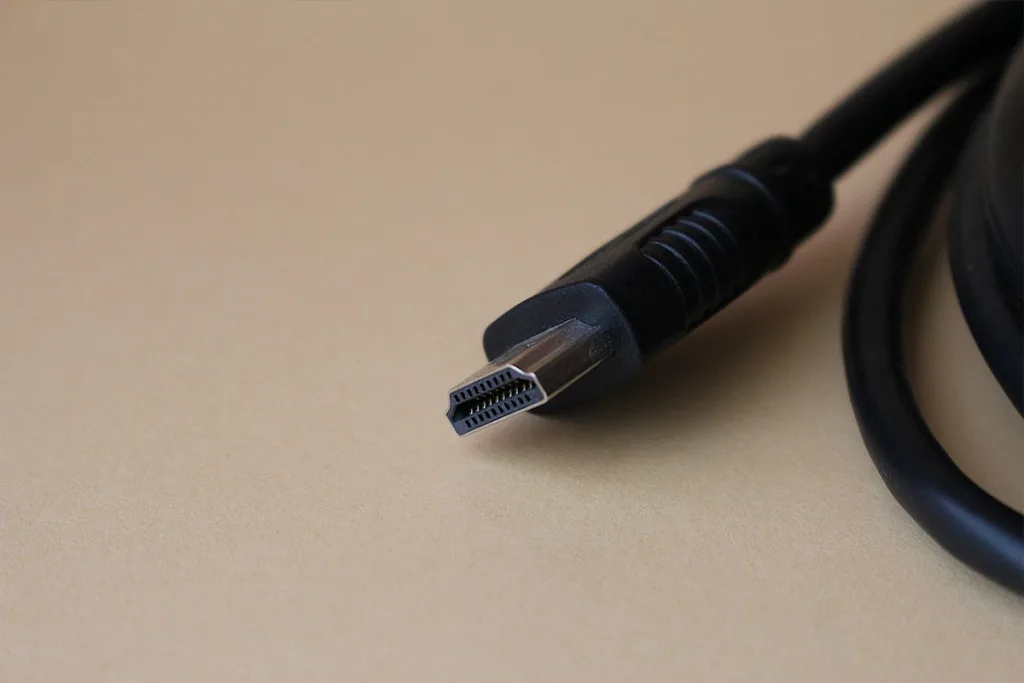
First, make sure the adapter you’re using is active. Active adapters convert signals and are often needed for HDMI to DisplayPort setups. Double-check that the adapter matches your device specifications. If it’s not compatible, it won’t work.
Ensure Correct Connection
Check that the cable is securely connected to the right ports. Plug the HDMI end into the output (like your laptop or console) and the DisplayPort end into the input (like your monitor). Also, confirm that your device settings have the right source and destination selected.Want to wholesale HDMI cable? Contact us.
Test with Other Devices
Sometimes, the issue isn’t the cable—it’s the device. Test your cable and adapter on another setup. If it works there, the problem might be with your original device.
Adjust Display Settings
Go to your device’s display settings. Set the resolution and refresh rate to levels your monitor supports. For example, if the monitor can’t handle 4K at 60Hz, lower the settings to match.
Power the Adapter
If you’re using an active adapter, it may need external power to work. Connect it to a USB port or other power source to ensure it has enough juice to transmit the signal.
When to Seek Professional Help
Sometimes, even after trying every trick in the book, your HDMI to DisplayPort connection just won’t work. That’s when it might be time to call in the experts. Here are some situations where professional help can save the day:
Hardware Failure
If you suspect that your cable, adapter, or device ports are damaged, a professional technician can diagnose and fix the problem. They have the tools and expertise to identify hardware issues that you can’t spot on your own.
Unsupported Configurations
Some setups just aren’t designed to work together. If your devices aren’t compatible, professionals can confirm this and recommend alternatives. Sometimes, they might suggest specific adapters or devices that can bridge the gap.
Persistent Issues
If you’ve tried all the troubleshooting steps—checking compatibility, adjusting settings, and testing other devices—but the problem persists, it’s worth consulting a specialist. They can dive deeper into the technical details and find solutions tailored to your setup.
Device Manufacturer Support
Don’t forget, your device manufacturer is a great resource. Their support teams often have detailed knowledge about their products and can guide you through advanced troubleshooting or recommend certified accessories.
Conclusion
Dealing with HDMI to DisplayPort cable issues can be frustrating, but with the right approach, most problems can be solved.Lastly, knowing your devices’ technical requirements ahead of time is the best way to avoid these problems altogether. Being prepared not only saves time but also ensures a seamless experience with your setup.With these tips, you’re now better equipped to tackle HDMI to DisplayPort issues and enjoy a smoother connection!
FAQs
Why isn’t my HDMI to DisplayPort cable working?
Most HDMI to DisplayPort cables need an active adapter to convert the signal properly. If your adapter is passive, it might not work. Also, check if your devices are compatible with the cable. A mismatch in resolution or refresh rate settings could also cause the issue.
Do I need an active adapter for HDMI to DisplayPort?
Yes, in most cases. HDMI and DisplayPort use different signals, so an active adapter is necessary to convert the HDMI signal into a DisplayPort-compatible one. Without it, the connection usually won’t work, especially for high-resolution displays or gaming setups.
How can I fix a black screen when using an HDMI to DisplayPort connection?
Start by checking your display settings. Set the resolution and refresh rate to levels supported by your monitor. Ensure the cable and adapter are connected securely. If you’re using an active adapter, make sure it’s powered. If the problem persists, test the setup on another device to rule out hardware issues.