
Do you always feel that the screen of your laptop is too small? Whether you’re working from home, gaming, or giving a presentation, a larger screen boosts productivity and enhances your experience. It’s perfect for multitasking—imagine editing a spreadsheet on one screen while referencing documents on another. But how to Connect Laptop to Monitor?Although connecting a laptop to a monitor is a very simple action, not everyone knows this trick. In this article, we aim to help those who are connecting a monitor for the first time, providing detailed steps.
Table of Contents
What are the most common cables?
HDMI: The go-to for most laptops and monitors. It’s great for high-definition video and audio. You’ll need an HDMI cable to connect both devices.
USB-C: This versatile port handles video, data, and power. It’s compact and common in modern laptops. For video, use a USB-C to HDMI or USB-C to DisplayPort cable if your monitor doesn’t support USB-C directly.
VGA: An older port mostly found on legacy monitors. It’s only for video and requires a separate cable for audio.
DisplayPort: A favorite for gamers and professionals. It supports higher resolutions and refresh rates than HDMI.
Thunderbolt: Found in premium laptops, it’s like a supercharged USB-C. Thunderbolt can handle ultra-fast video and data transfers.
Adapters
What if your laptop and monitor have mismatched ports? No worries—an adapter is your best friend.
HDMI to VGA: Perfect for connecting a modern laptop to an older monitor.
USB-C to HDMI/DisplayPort: Ideal for laptops with USB-C ports but monitors without them.
DisplayPort to HDMI: Common for gamers who want to connect their high-performance monitors.
Steps to Connect Your Laptop to a Monitor
For Windows Laptops
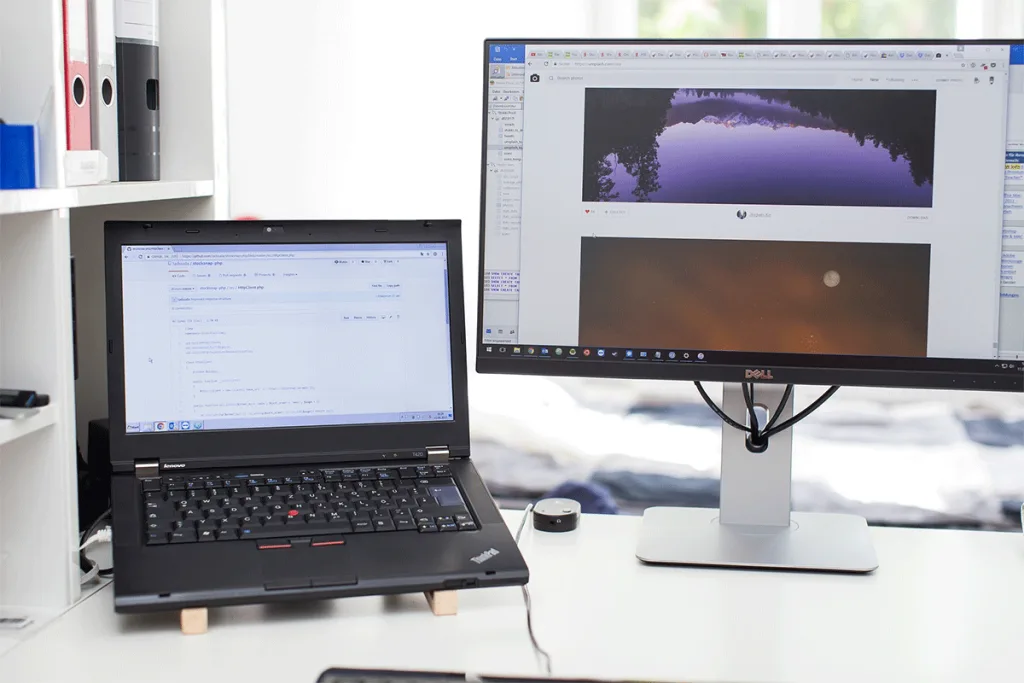
Plug it in: First, connect your laptop to the monitor using the right cable (HDMI, USB-C, or whatever your laptop and monitor support).
Open Display Settings: Right-click on your desktop and select Display Settings.
Choose Display Mode: You’ll see options like Duplicate (same display on both screens), Extend (extend your desktop across both screens), or Second Screen Only (use only the monitor). Pick the one that works best for you.
Use Keyboard Shortcuts: To switch between these modes quickly, press Windows key + P. This brings up the display options, so you can change settings with one click.
For MacBooks
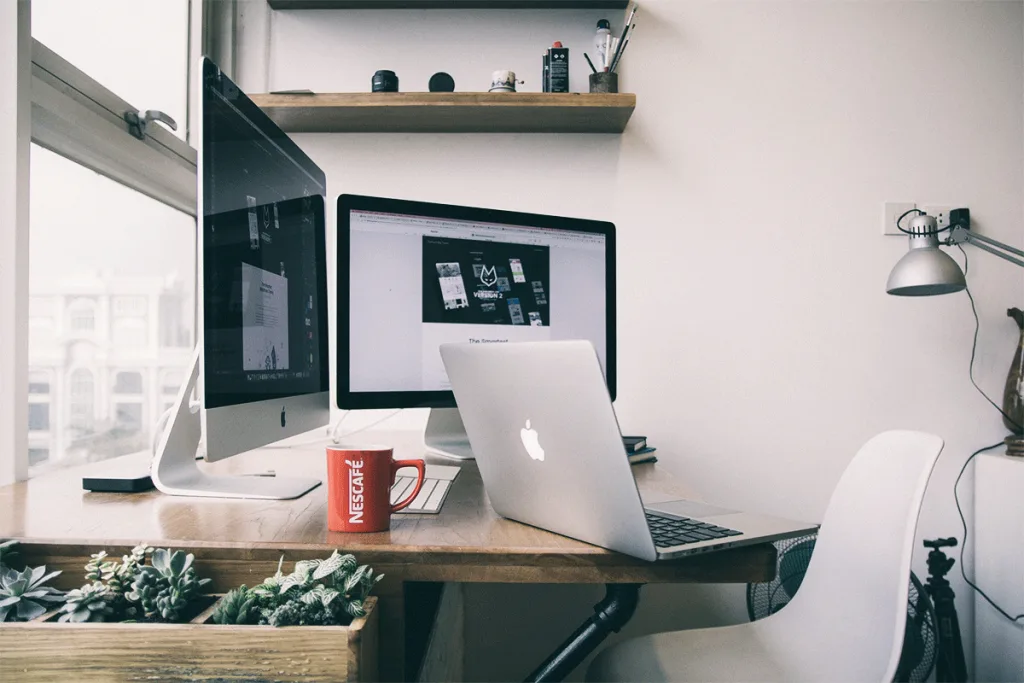
Plug it in: Connect your MacBook to the monitor using the appropriate cable or adapter (USB-C, Thunderbolt, HDMI).
Go to System Preferences: Click on the Apple menu > System Preferences > Displays.
Arrange or Mirror: In the Arrangement tab, you can drag the display icons to match the physical arrangement of your monitors. If you want the same image on both screens, check Mirror Displays.
Adjust to Your Liking: Whether you extend your desktop or mirror the display, you can set it up exactly how you like!
Why Laptop Not Connecting to Monitor?
Sometimes, things just don’t work as expected. If your laptop isn’t connecting to the monitor, here are a few common issues and how to fix them:
Monitor Not Recognized:
Solution: Double-check your cables and connections. Make sure everything’s plugged in properly. A loose cable can easily cause this issue.
Solution: Restart both your laptop and monitor to reset the connection.
Poor Image Quality:
Solution: Make sure you’re using the right resolution. Go to your Display Settings and adjust the resolution for optimal image quality.
Solution: Try using a different cable if the one you’re using seems damaged or low-quality.
Wrong Monitor Input:
Solution: Ensure the monitor is set to the correct input source. For example, if you’re using HDMI, make sure the monitor is set to HDMI mode.
Driver or OS Issues:
Solution: Check for updates! Outdated display drivers or operating systems can cause connection issues. Head to your laptop’s Device Manager or System Preferences to check for updates and install them.
Advanced Configurations
Using a Docking Station:
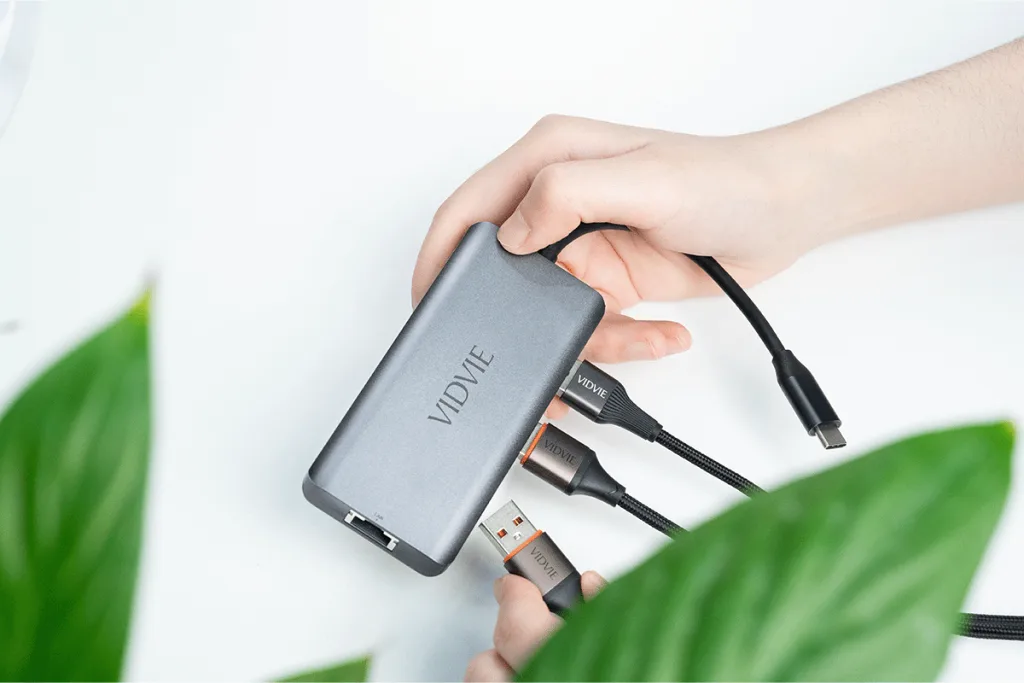
A docking station is your best friend for connecting multiple monitors. It lets you plug in several monitors, a keyboard, a mouse, and more, all through one connection to your laptop. Docking stations are especially useful for laptops with limited ports. Just plug the dock into your laptop, then connect your monitors to the dock.
Wireless Connections with Miracast:
If you don’t want any cables hanging around, you can go wireless. Miracast is a technology that lets you stream your laptop’s display to a compatible monitor or TV without using a cable. All you need is a Miracast-enabled monitor or TV, and a laptop with Miracast support (most Windows 10 and later laptops have it). Simply connect wirelessly and start mirroring or extending your screen.
Conclusion
Connecting your laptop to a monitor brings a ton of benefits—whether it’s for boosting productivity, gaming, or creating a more comfortable workspace. A bigger screen helps with multitasking, makes videos look better, and is perfect for professional presentations. Plus, with the right setup, it’s easy to connect and get started.
At VIDVIE, we’re committed to helping you get the most out of your tech. We’ll keep providing helpful guides and articles on the latest products, so you’re always in the know. Keep an eye out for more tutorials from us, and stay tuned for the best tips on using your tech.
FAQ
Why isn’t my laptop connecting to the monitor?
a.Check your cables and make sure everything’s plugged in properly.
b.Make sure the monitor is set to the right input (HDMI, VGA, etc.).
c.Restart your laptop and monitor to reset the connection.
Can I use multiple monitors with my laptop?
Yes, you can. If your laptop has extra ports, just plug in another monitor.If there’s only one port, use a docking station or an adapter to add more screens.
Do I need special cables to connect my laptop to a monitor?
You’ll need the right cable based on your laptop and monitor ports (HDMI, USB-C, DisplayPort).If the ports don’t match, use an adapter (e.g., USB-C to HDMI or HDMI to VGA).