
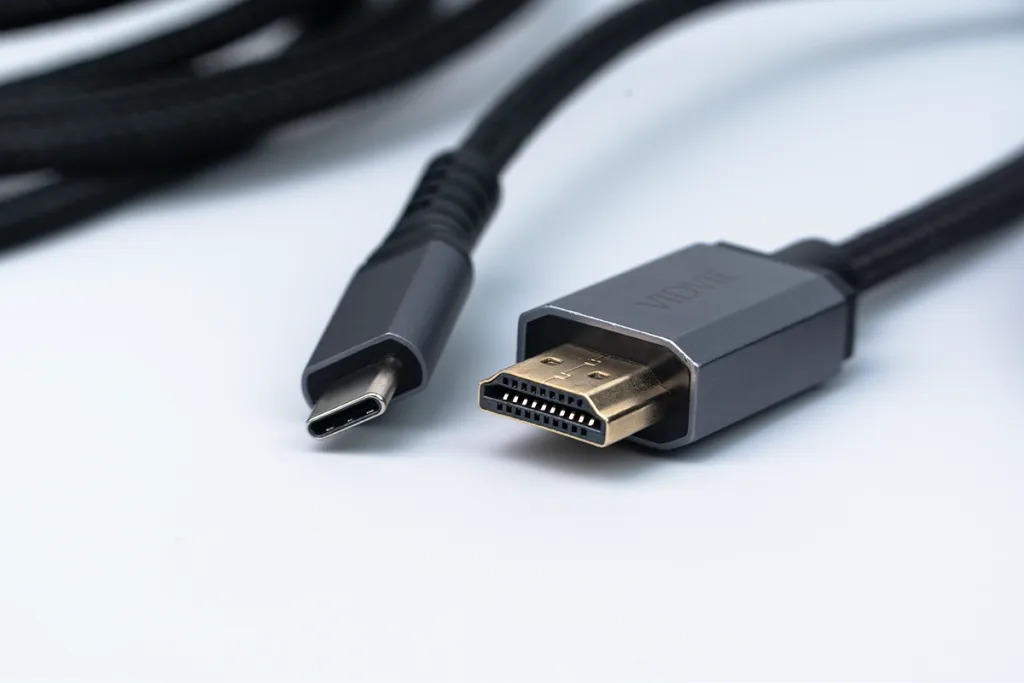
Connecting your phone to a TV has become super popular. Whether it’s streaming movies, playing games on a bigger screen, or sharing a presentation, people love the convenience of linking their mobile devices to their TVs. In this guide, we’ll walk you through the step-by-step process of connecting your phone to your TV using USB-C and HDMI. We’ll also tackle common problems you might face and how to solve them. This way, you’ll have a smooth and hassle-free experience every time you connect.
Table of Contents
What Are the Benefits of USB Type C to HDMI Cable?
Using a USB Type-C to HDMI cable has plenty of perks, making it a favorite for connecting phones to TVs. First up, it delivers stunning high-resolution video and crystal-clear audio, even supporting 4K or higher. That means your movies, games, or presentations look amazing on the big screen.
Setting it up is a breeze—just plug it in, and you’re good to go. No need for extra apps or software, so there’s less hassle and more action.
And it’s not just for streaming movies. You can use it for work presentations, gaming, or sharing vacation photos with family. It’s versatile and handy for all kinds of scenarios.
By using this cable, you’re combining simplicity, quality, and versatility—everything you need for a smooth connection.
How to Connect Phone to TV with USB-C to HDMI
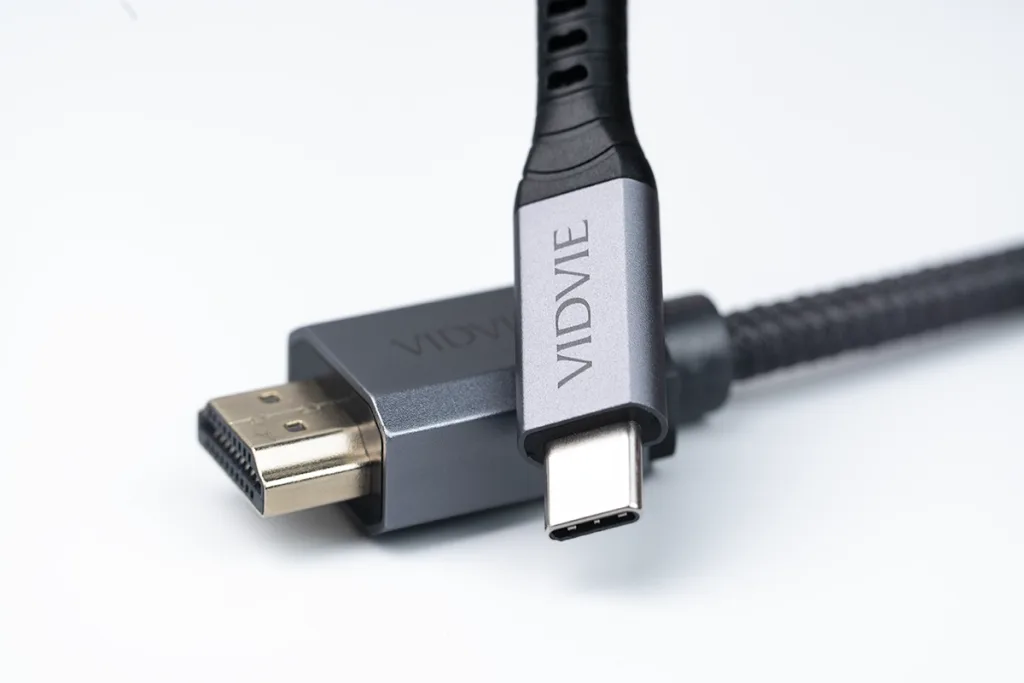
Gadgets Needed
Before you dive into connecting your phone to your TV, make sure you’ve got everything you need. First, you’ll need a phone with a USB-C port—most modern Android devices and some other brands have it.
Next, get a USB-C to HDMI adapter or cable. Look for one that supports high-resolution output, like 4K, for the best experience.
Lastly, check your TV. It should have an HDMI port—most TVs do. If your TV is older, you might need a different setup, but we’ll stick to the basics here.
Once you’ve got these, you’re ready to connect! It’s easy, and we’ll guide you through every step to make it work perfectly.
Guide to Connecting
Step 1: Check device compatibility.
First, make sure your phone has a USB-C port, and your TV has an HDMI input. If they do, you’re good to go!
Step 2: Connect the USB-C to HDMI adapter.
Take your USB-C to HDMI adapter and plug it into your phone’s USB-C port. Make sure it’s securely connected.
Step 3: Plug in the HDMI cable.
Attach one end of the HDMI cable to the adapter and the other to an HDMI port on your TV. Look for the labeled ports if you’re unsure.
Step 4: Switch the TV input.
Using your TV remote, switch the input source to the HDMI port where you plugged in the cable. Your screen should light up soon!
Step 5: Adjust phone settings.
If needed, enable screen mirroring or external display settings on your phone. Some devices do this automatically, but others may need a quick setting tweak.
Common Issues When Connecting
Sometimes things don’t go smoothly when connecting your phone to a TV. Here are common problems and how to fix them:
No signal on the TV?
Double-check the connections. Is the HDMI cable plugged in securely? Make sure your TV is set to the correct HDMI input. Use your TV remote to switch inputs if needed.
Adapter not recognized by the phone?
This could be a compatibility issue. Ensure your adapter is designed for your phone’s brand and model. If everything matches, restart your phone and try reconnecting.
Lag or poor video quality?
This often happens with low-quality cables. Use a good-quality HDMI cable and adapter. Also, ensure your phone and TV support the same resolution, like 1080p or 4K.
FAQs
Can I connect any phone to a TV using USB-C to HDMI?
Not all phones support this feature. Your phone needs to have a USB-C port with DisplayPort Alt Mode or similar technology. Check your phone’s specs to ensure it’s compatible.
Why isn’t my phone displaying on the TV after connecting the cable?
This might happen due to incorrect settings or cable issues. Double-check that the USB-C to HDMI adapter is active and compatible. Also, ensure you’ve selected the correct HDMI input on your TV.
Do I need an expensive USB-C to HDMI cable for a good connection?
Not necessarily, but investing in a high-quality cable ensures better performance, like stable connections and high-resolution output. Cheaper cables might cause lag or poor video quality.
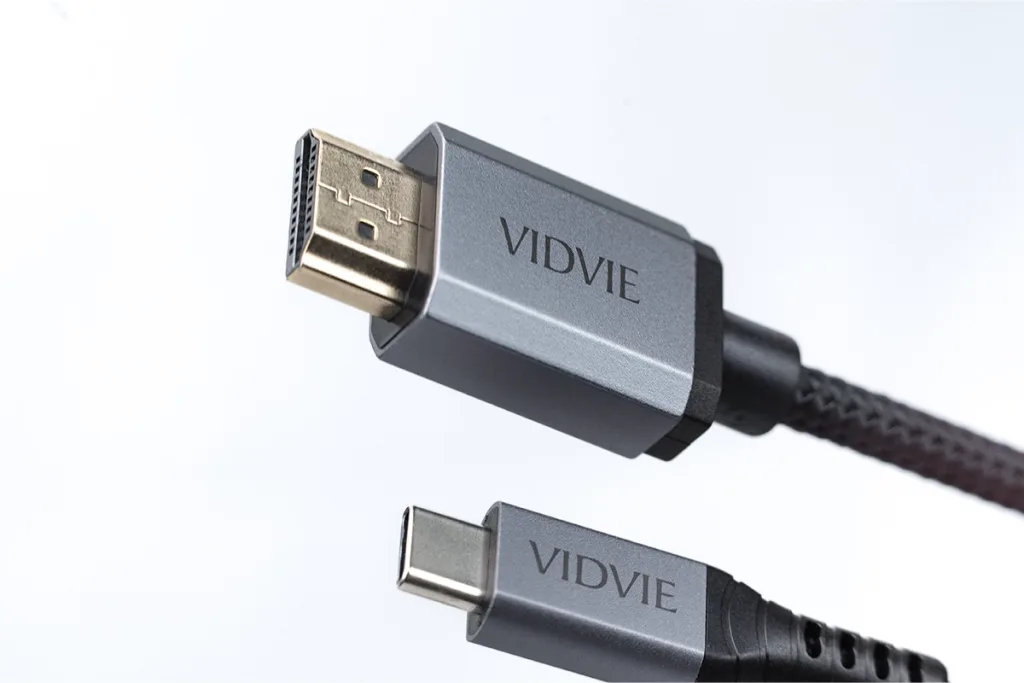
VIDVIE High-Speed HDMI Cable for 4K.Experience stunning visuals with our premium high-speed HDMI cable, designed to support 4K resolution at 60Hz. Whether you’re streaming movies or playing video games, this cable ensures you enjoy crystal-clear images without lag, making every viewing experience immersive.Be Our Distributor.
Conclusion
Connecting your phone to a TV with a USB-C to HDMI cable is a game-changer for streaming, gaming, or presentations. In this article, we explained the benefits of USB-C to HDMI, like delivering high-quality video and audio with ease. We provided a step-by-step guide, from checking compatibility to enabling screen mirroring on your phone, to make the process simple for everyone. We also tackled common problems like no signal or lag and offered practical fixes.To get the best results, invest in reliable cables and adapters. Always check that your phone and TV support the required features. With this guide, you’ll enjoy seamless connectivity and an enhanced viewing experience.