
In today’s world of rapid technological penetration, USB cables are everywhere. They play an important role in charging devices, connecting peripherals, and transmitting data. Even though they are widely used, many people don’t know the types of USB cables and what they do. This article will explain the functions and usage scenarios of USB cables to you, making them less mysterious. Whether you are just an ordinary device user or a professional technician, this article will effectively help you understand various information about USB cables and provide you with better reference.
Table of Contents
USB cables types

There are several different types of USB cables on the market. Each type is designed for specific uses and devices. Understanding the different types will help you choose the right cables for you. The following are the most common types of USB cables available on the market:
USB Type-A:
As the most common and easily recognizable type-A cables, their main function is to connect external devices such as the mouse, keyboard or other hard disk in the computer.
USB Type-B:
These cables, commonly used to connect larger devices like printers and scanners, are square in shape with a beveled top.
USB Mini-B:
A relatively small connector, usually used in older mobile devices and digital cameras. There are many similar connectors on the market that can replace this type.
USB Micro-B:
A smaller version of USB Type-B, widely used in older smartphones, tablets, and other portable devices before USB-C became popular.
USB Type-C:
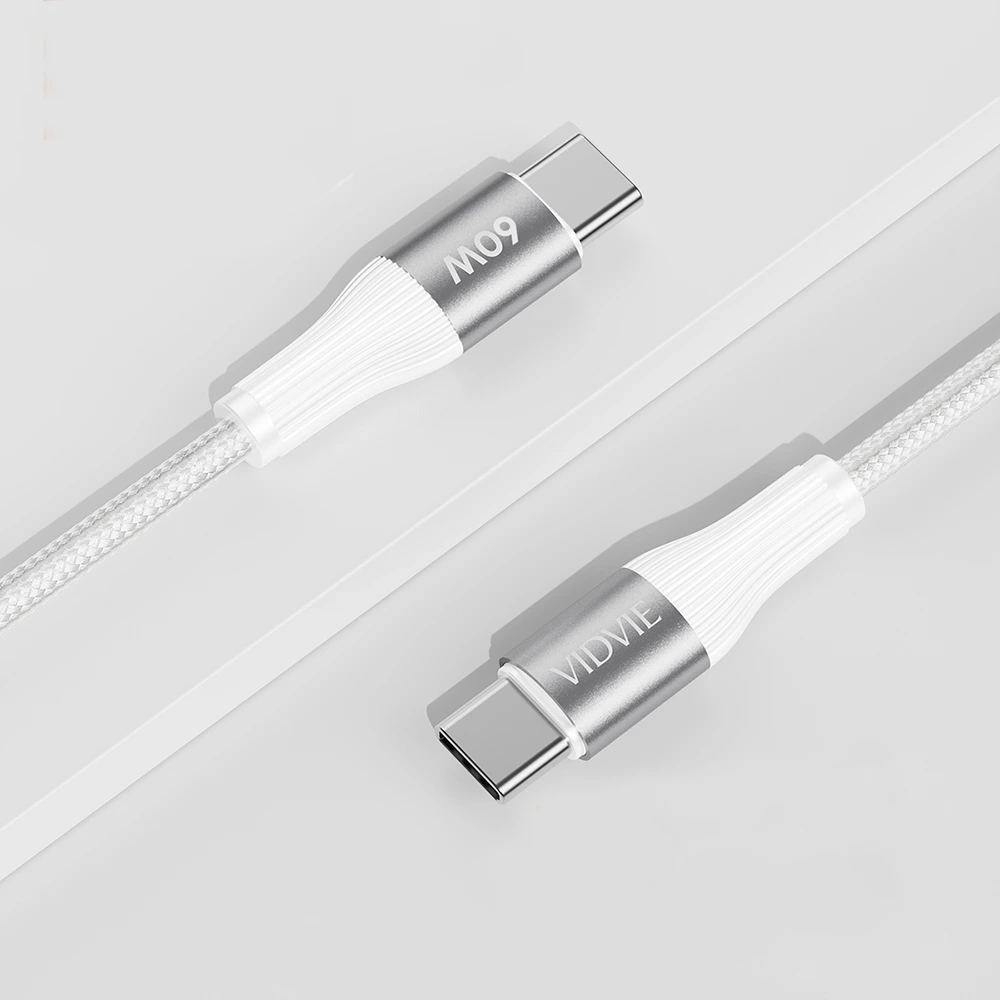
The newest and most versatile connector, a reversible design that can carry higher power and data transfer rates, is slowly becoming standard on modern devices, including laptops, smartphones, and tablets.
USB 3.0 and 3.1
Known for their blue connectors, they allow for faster data transfers than USB 2.0. They are backwards compatible with USB 2.0 devices
Lightning:
Used to connect iPhones and iPads to USB ports for charging and data transfer. Although not a USB standard, this is Apple’s proprietary connector that is often mentioned in the context of cable for mobile.
Difference Between USB Male and USB Female
For those who use USB cables, it may be a good idea to know the difference between USB male and USB female. USB connectors are mainly divided into two types: male and female. Male connectors are usually called plugs, have protruding pins, and are designed to be inserted into ports. It is usually located at the end of USB cables. Female connectors are called sockets or ports, contain corresponding holes, and are usually embedded in computers, chargers, and other electronic devices.
USB male connectors are used to connect peripheral devices such as keyboards, mice, and external drives to host devices. On the other hand, USB female connectors are used as ports on devices that receive these peripherals. For example, USB ports on laptops or charging ports on smartphones and mobile power banks are all USB female connectors. Understanding this difference ensures that you use the right type of cable and port for your device, thereby enhancing compatibility and functionality.
History of USB version changes and main differences
The history of USB began in the mid-1990s with the introduction of the first generation of USB. USB 1.0 had a transfer rate of 1.5 Mbps (low speed) and 12 Mbps (full speed). This innovation simplified connections by replacing a large number of ports and connectors with a single interface.
USB 2.0 was introduced in 2000. USB 2.0 has a greater transfer rate than USB 1.0, with a maximum data transfer rate of 480 Mbps. This version allows faster data transfer and provides power for more demanding devices. This version is widely used. Today, USB 2.0 is still used by many devices and can balance speed and compatibility well.
In 2008, the emergence of USB 3.0 took USB to a higher level, with a transfer rate of up to 5 Gbps. This version of USB greatly shortened the transfer time of large files and greatly improved work efficiency. The subsequent USB 3.1 and USB 3.2 have a transfer rate of up to 5 Gbps, while also maintaining backward compatibility with earlier versions.
As time goes by, the latest version of USB, USB4, was launched in 2019. USB4 is the latest standard, supporting data transfer rates of up to 40 Gbps, providing enhanced performance for modern high-speed applications. Thunderbolt 3 technology is also integrated, providing greater versatility and compatibility with a wide range of devices. The introduction of USB4 aims to unify the USB ecosystem and provide a single, powerful interface for all types of connections.
The differences between these versions are mainly in their data transfer speeds, power delivery capabilities, and connector types. USB 1.0 and USB 2.0 used Type-A connectors, and USB3.0 and higher versions introduced blue Type-A and newer Type-C connectors. In particular, the Type-C connector is reversible and supports higher power transmission, making it ideal for charging larger devices such as laptops.
USB Functionalities
Transferring Data
USB 2.0 versions are great for basic data transfers, such as transferring files between computers and external devices like printers, keyboards, and mice.
USB 3.0 and USB 3.1 are designed for faster data transfers, such as file transfers between external hard drives and computers, as well as high-definition videos and high-resolution photos.
USB 3.2 and USB 4 are used for extremely fast data transfers, such as SSDs and connecting high-speed peripherals, ensuring minimal latency and greater efficiency.
Charging
USB 2.0: Good for charging small devices like smartphones, e-readers, and small portable devices.
USB 3.0 and above: Offers higher power delivery, making it suitable for charging larger devices like tablets, cameras, and some laptops.
USB-C (USB Power Delivery): The most advanced charging method, supporting up to 100W of power, perfect for quickly charging high-power devices like laptops, tablets, and even some gaming consoles.
Connect external device
USB2.0 and 3.0 are usually used to connect to computers such as keyboards, mouses, printers and external storage devices.
The USB C function is more powerful, which can be used to connect various external equipment, docks, monitors and other compatible USB-C devices.
Audio and video transmission
USB 3.1 and USB-C: Usually used to transmit audio and video signals. Especially the USB-C supports the Display Port of USB-C, which can directly connect the display and other display devices.
USB4: Integrate Thunderbolt 3 technology, allowing high -speed data, video and electricity transmission through single cables, supporting multiple displays and high -definition displays.
Networking
USB 2.0 and above: Used for creating network connections between computers and other devices, enabling internet sharing and direct device-to-device data transfer.
What to consider when buying USB cables?
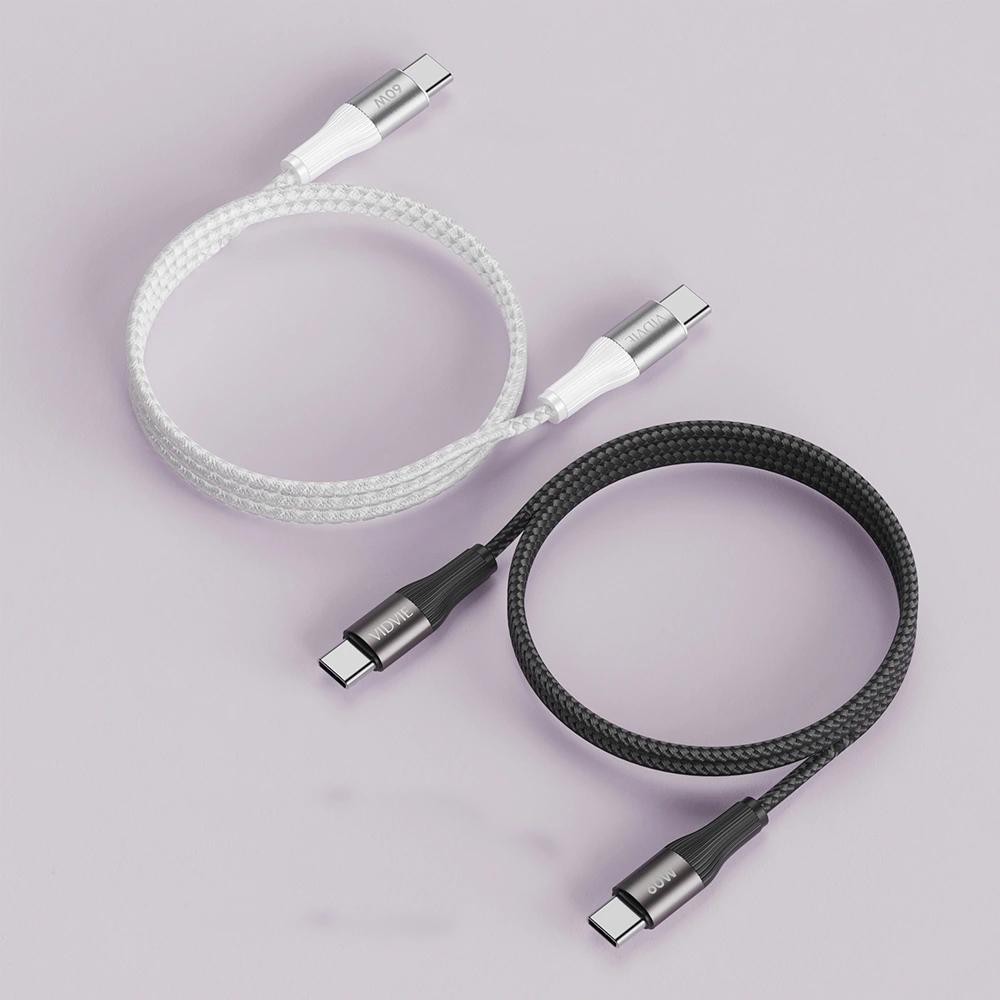
With the ever-increasing variety of devices, choosing the right USB cables can be frustrating, but don’t worry, the following suggestions will solve your problems.
Choose the right cables:
USB version: Look for USB 2.0, 3.0 (also known as USB 3.1 Gen 1), or the latest USB 3.2 (USB 3.1 Gen 2) for faster charging and data transfer.
Cable length: Consider the distance you need to comfortably connect your devices.
While cheap cables are tempting, they often use inferior materials that can lead to slow charging, data transfer issues, and even damage your devices.
Not all cables are created equal. For fast charging, make sure the cable supports the same charging standard as your device.
Go for braided nylon or reinforced cables for better strain relief and longer life, especially for cables that are bent or moved frequently. Plastic cables, in particular, are prone to creases and breakage. If a cable is damaged, stop using it. In my personal experience, damaged cables are prone to exploding.
Conclusion
The selection of USB cables may seem complicated, but as long as you have a certain understanding of USB types, versions, applicable occasions, and develop good shopping habits, you can choose the right USB cables for yourself. Choosing high-quality USB cables may be an investment, because you don’t know which cables are the best for you, and you will only know it through experiments. VIDVIE is also a supplier specializing in cables, providing you with more choices.If you have any needs, please do not hesitate to consult us.
FAQ
1. What USB cables do I need for my phone (or other device)?
There are two main things to consider: the connector type and the cable version. Look for the connector that matches your device (e.g., USB-C for most new phones) and choose a cable version that supports the fastest charging and data transfer speeds your device can handle (e.g., USB 3.2 for fast charging).
2. Why is my new USB cables so slow?
There are a couple of possibilities. First, check the cable version. If it’s an older USB 2.0 cable, it won’t be as fast as a newer USB 3.2 cable. Second, ensure the cable supports the same charging standard as your device. For example, if your phone uses USB Power Delivery for fast charging, a regular USB cable might not deliver the full power.
3. Are expensive USB cables worth it?
While you don’t necessarily need the most expensive cable, very cheap ones can be problematic. Look for cables with certifications from reputable organizations like USB-IF. These cables are more likely to be durable, offer faster speeds, and protect your devices from potential damage caused by low-quality materials.